
How to export print-ready files from Adobe Illustrator - Ai software

Important things to note before exporting the print file from Adobe Illustrator (Ai)
1. Image link
Image links (hyperlinks) help reduce the file size of your assets and you can also easily update all image links when needed. When exporting or printing, the original file will be extracted, creating the final output from the original resolution of your assets.
How to link images:
Step 1: Check image link: Ctrl + Y.
Images that are not linked will show an X on the image.

Step 2:Image link:
- Select the image that needs linking
- On the toolbar, click Embed. When embedded, the two diagonal lines on the image will disappear.

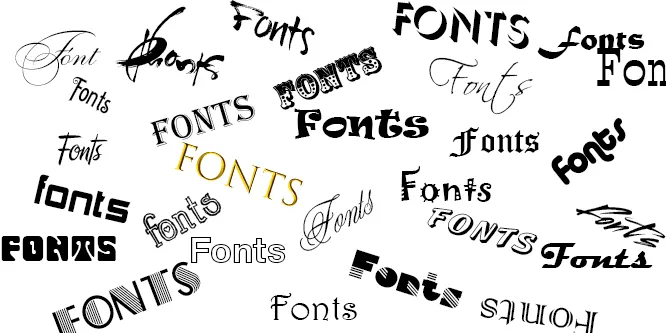
2. Font locking by Outline Font
When using fonts in the design process, before exporting the print file in Illustrator, you should convert them to outlines to ensure the fonts do not change when you export the print file.
Step 1: Click on the toolbarSelection Tool ->Select the Text line
Step 2: Select Type -> Create Outlines

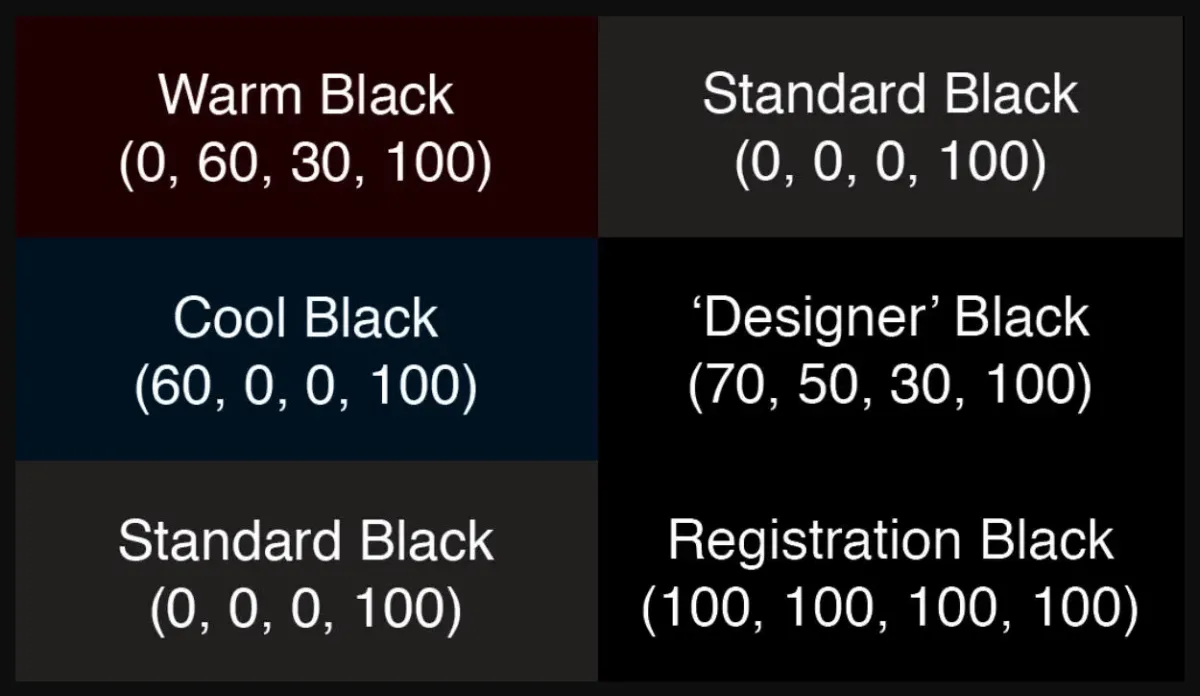
3. Convert RGB color mode to CMYK color mode
The color mode commonly used in design is RGB; however, almost all printers only use CMYK color mode. Therefore, to ensure the printed output has the most accurate colors, you need to convert the RGB color mode to CMYK color mode.
Step 1: Check the color mode on the design tab. The color mode you are using will be displayed on the design tab.

Step 2: Convert color:
- Select the content to convert color (Ctrl + C) or select all content on the file (Ctrl + A)
- Create a new Tab, in the Color Mode section, switch to CMYK Color; Raster Effects: High (300 ppi)

Step 3:Paste all copied content (ctrl + V)
Now you have converted all selected content from RGB color mode to CMYK color mode; however, there may still be some color changes in the selected content. You should check again and adjust the colors to match the original design as closely as possible.
How to export print-ready files from AI software
1. How to export PDF files from softwareAdobe Illustrator (Ai)
Step 1: Select File -> Save As.

Step 2: Select Save as type -> pdf.

Step 3: To set the default settings of Ai -> Save PDF.

2. How to export JPG or TIFF files from softwareAdobe Illustrator (Ai)
Step 1: Select File -> Export -> Export As.

Step 2: Select Save as type -> jpg or tiff.

Step 3: To set the default color mode CMYK – Resolution 300 dpi.

By following the steps above, you can export print-ready files from Adobe Illustrator - Ai
I hope this article will be useful for customers who have, are, and will use printing services. Also find more articles on the websitethegioiinan.comsure!
See more ways to export print-ready files on other software:
2. InDesign
3. Corel - Cdr
4. Canva
Source: Thegioiinan



.png)
.png)
 (1).jpg)










 Login with Zalo