
Instructions for self-designing Facebook banner templates in just a few minutes with Penci
1. Can you design a Facebook banner quickly and easily?
You can completely do it when you use Penci - an online design tool free of charge, with a library of templates specifically for Vietnamese users. You don't need to know Photoshop to create beautiful Facebook banner templates in just a few minutes of operation.
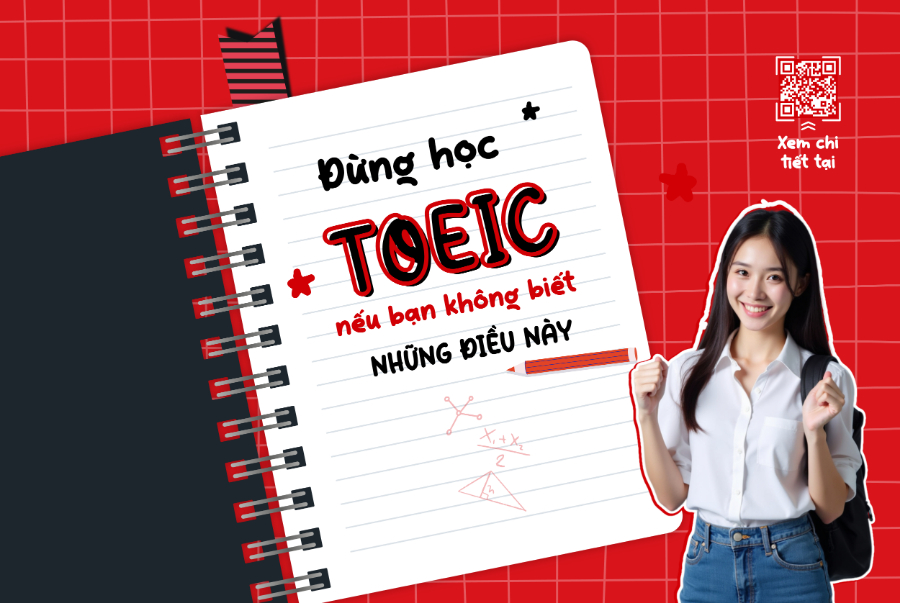
(Horizontal Facebook banner with the theme Education created from Penci)
- A variety of Facebook banner templates, standard horizontal or square sizes: Penci provides hundreds of ready-made design templates with the correct dimensions for Facebook. The banners cover various themes for events, launches, promotions, birthdays,...
- Vietnamese fonts do not lose diacritics: All fonts in the library have been Vietnamese-optimized, ensuring aesthetics and convenience when entering content with Vietnamese diacritics.
- Easy-to-use design, direct drag-and-drop operations: You can manually adjust the text, change images, and modify colors just by a few simple clicks without needing advanced design skills.
- Direct design on the Penci website, no installation required: Whether you use a laptop or a mobile phone, just open Penci to start designing or editing your saved projects right away.
- Convenient printing, integrated in the design interface: After completing the banner, you can set it to print directly without needing to download the file or go find a separate printing place.
See more: Banner - Hanging banner used in advertising, events
2. Steps to design a Facebook banner with Penci
Step 1: Log in or Register an account
You need to Log in/Register an account to use the free design templates and resources → Go to the section “Create Design” → Select Facebook Banner in the search bar or “Templates”.
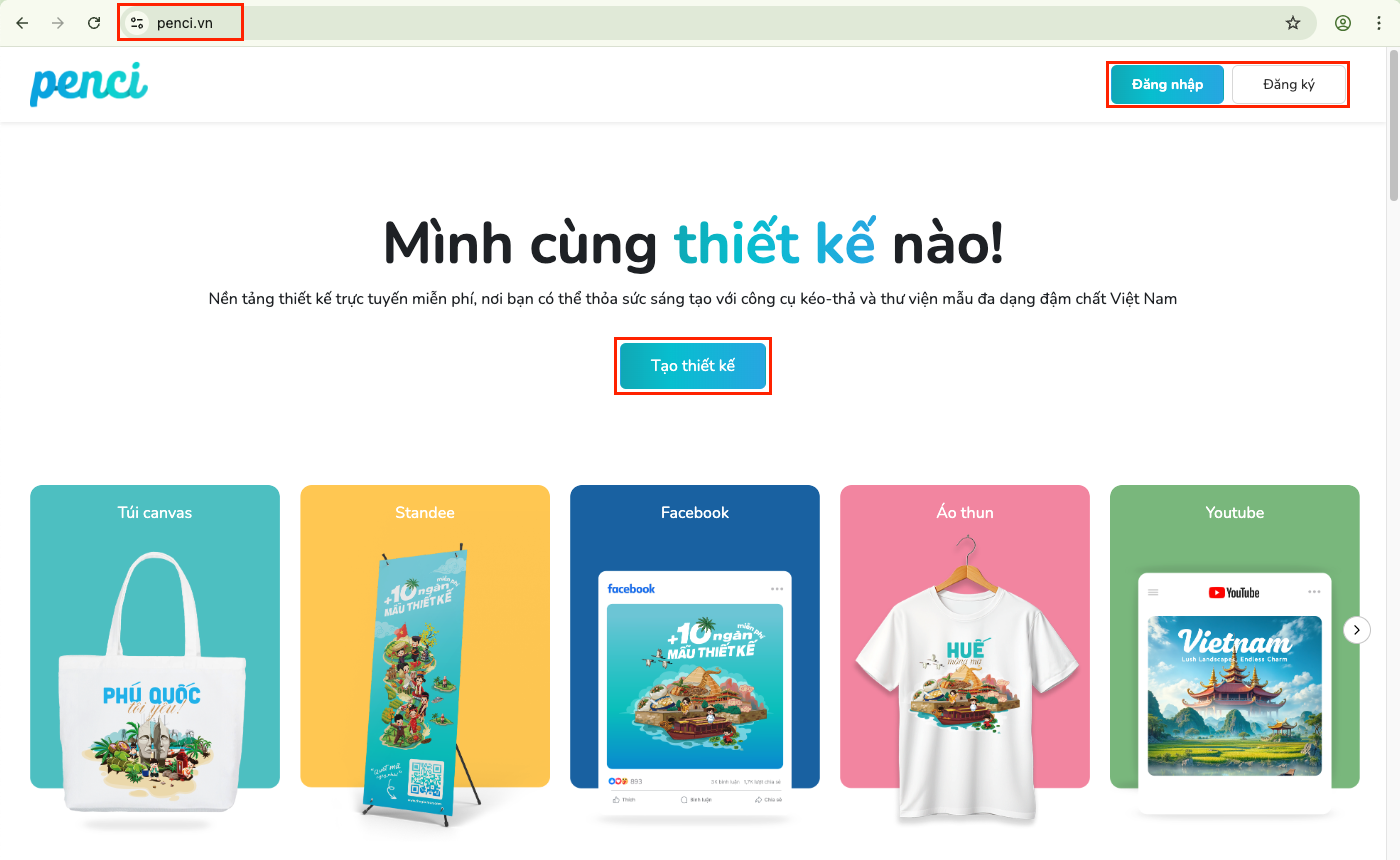
(Log in to Penci to use the free library of template designs)
Note: Penci has standardized dimensions for horizontal Facebook Banner templates (900 x 603 px) and vertical Facebook Banner templates (603 x 900 px), you do not need to adjust the dimensions and can design manually.
Step 2: Choose your favorite template
Select from hundreds of ready-made design templates available in the library. From themes like Education, launch, sale to events. You can also start from a blank template if you prefer to create from scratch.
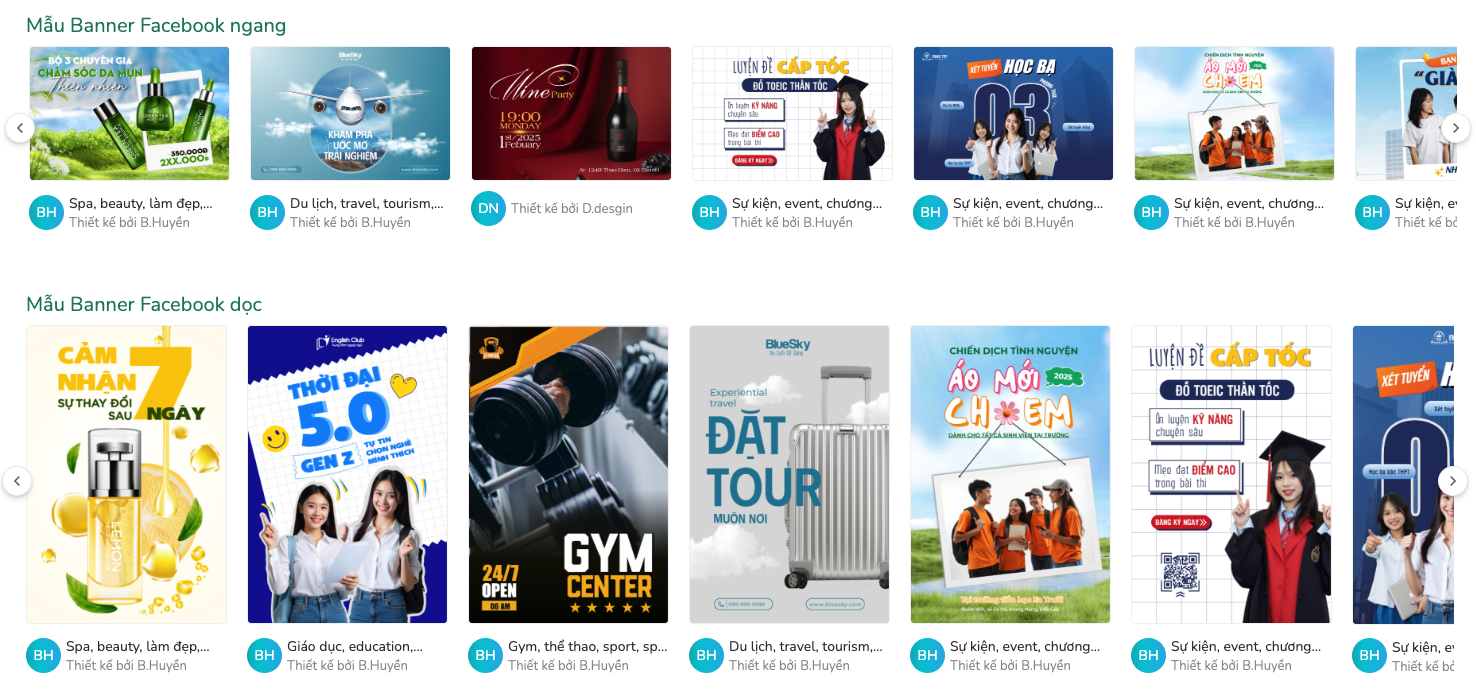
(Preview and design Facebook Banner templates in the library)
Note: Choose a template according to your color tone or your brand style (modern, professional, vintage,...).
Step 3: Edit content, add effects
- Enter text to change font, size, color
- Add stickers, frames, symbols from the library of Penci
- Drag to move, resize, rotate as needed.
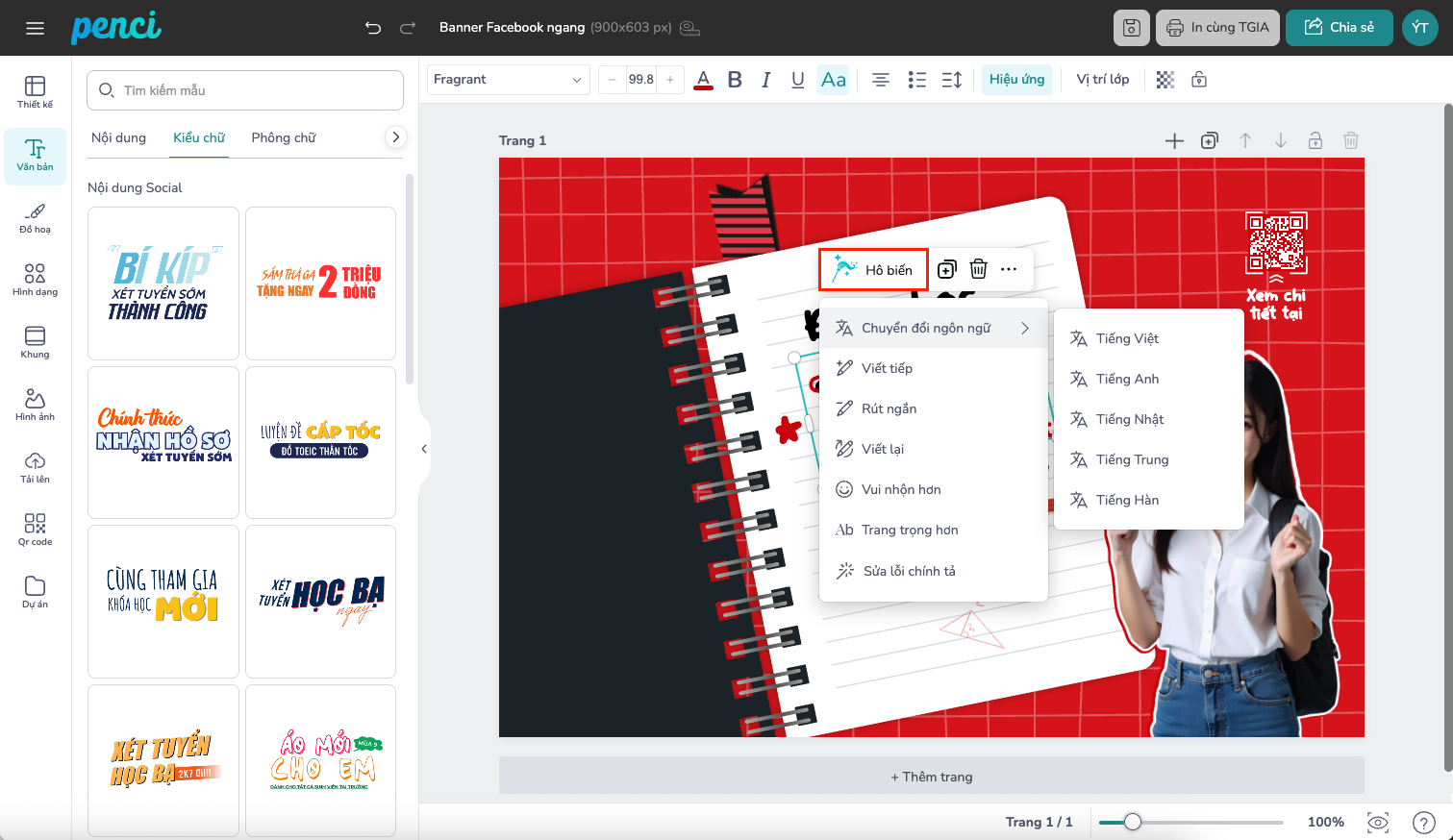
(Use the content summarization feature with AI to suggest slogans or titles for your banner)
Step 4: Customize images with AI background removal
Remove background from the image with 1 to highlight products or main characters.
Upload your image to replace your current image or choose an image from Penci's Vietnam image library.
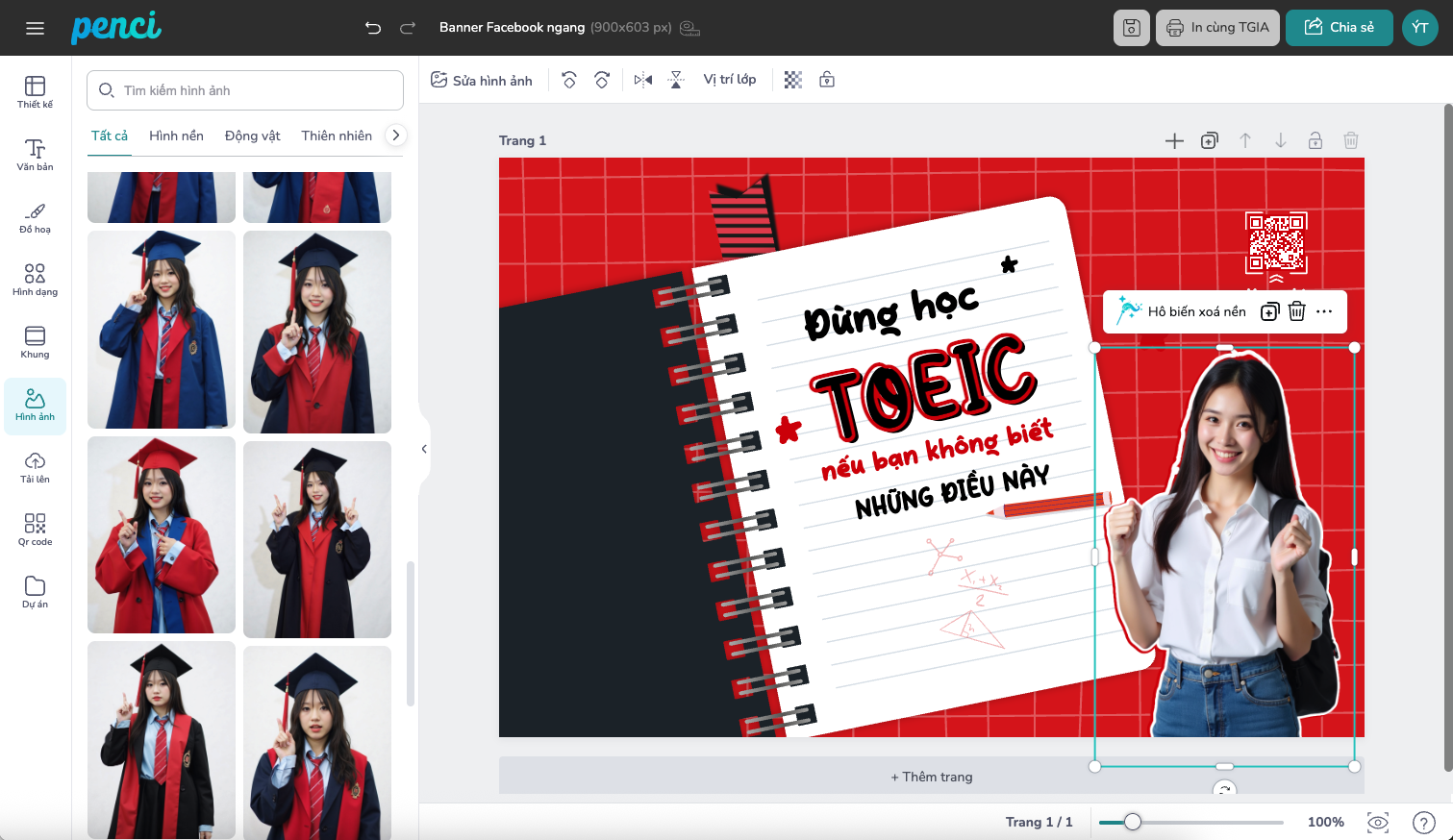
("Background removal" to isolate the main subject in the image)
Step 5: Download for use
Once the design is complete, click "Share" and choose to save as a high-quality PNG/JPG image, then click "Download". Or you can "Save design" for later use, edit or print.
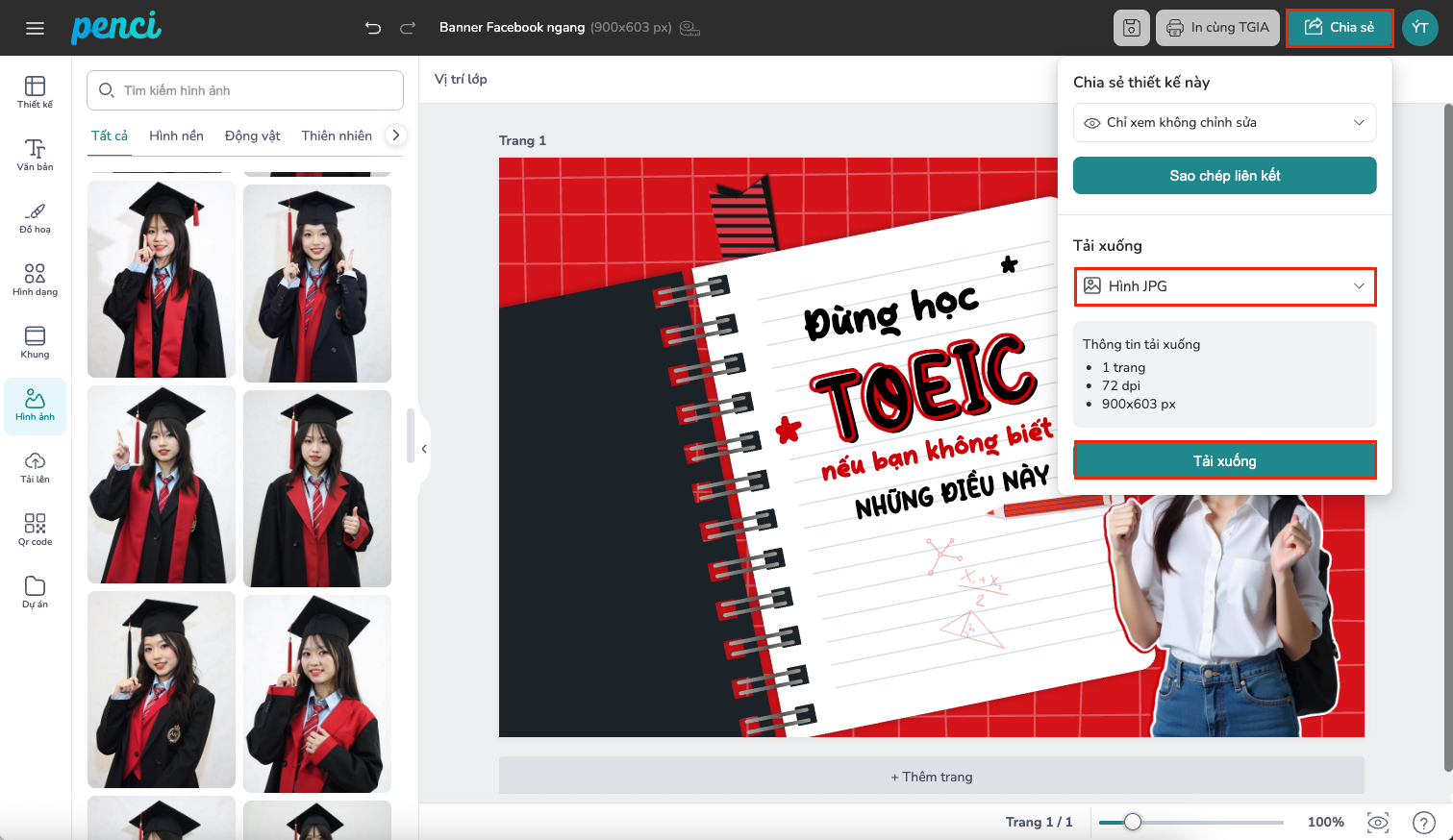 (Download the Banner design template for Facebook)
With Penci, you not only save time but also don't need advanced design skills, just a few clicks, you already have an eye-catching banner to post on Facebook. If you need more guidance or want to explore how to use AI features in Penci to create images, summarize content, then follow us to receive more design tips!
Source: Penci - Design tool for Vietnamese people, for Vietnamese people












 Login with Zalo