
Simple design with Penci's smart toolbar
1. Penci is the design assistant that helps save time
Penci is a free online design platform, user-friendly interface, with hundreds of suitable design templates for the market and trends in the country. You can design new templates from business card, banner, sticker to standee, postcards... just with a few clicks.
Instead of searching for tools in the cumbersome software, Penci helps you quickly perform tasks in design such as background change, color adjustment, drag and drop images, change frames, insert text,... on an intuitive interface, simple and easy to use.
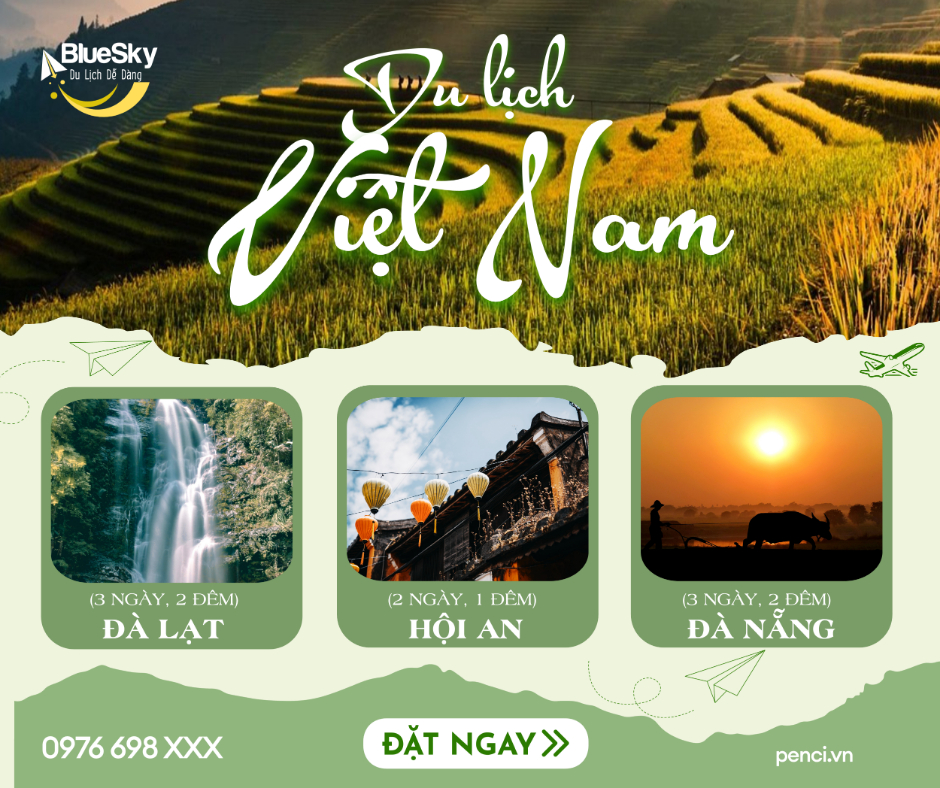
A "beautiful" banner designed from Penci
2. How to use smart tools on Penci
Change background color
- Click to select background area or select outer frame of the design.
- Select "Color" to display the color palette, you can:
* Choose a preset color
* Enter color code according to the usual format
* Pick color from any area in the design to make it the most harmonious
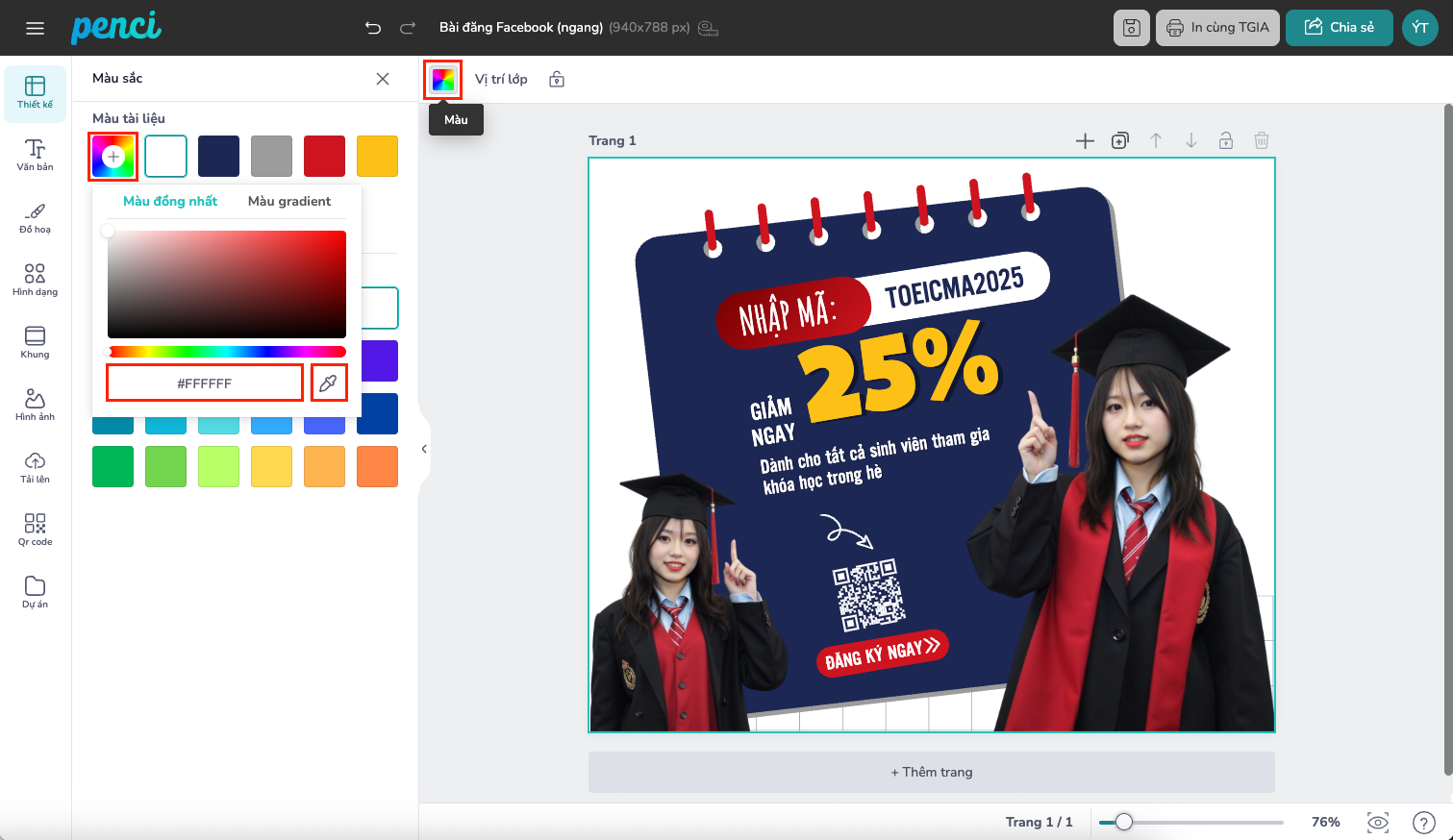
Interface to change background color with color palette and customizable color code
Add or change design templates
- Enter the existing template in the template → Click on the trash icon to "delete" the template.
- You select the tool "Template" on the left, then search for the template you like to add or replace.
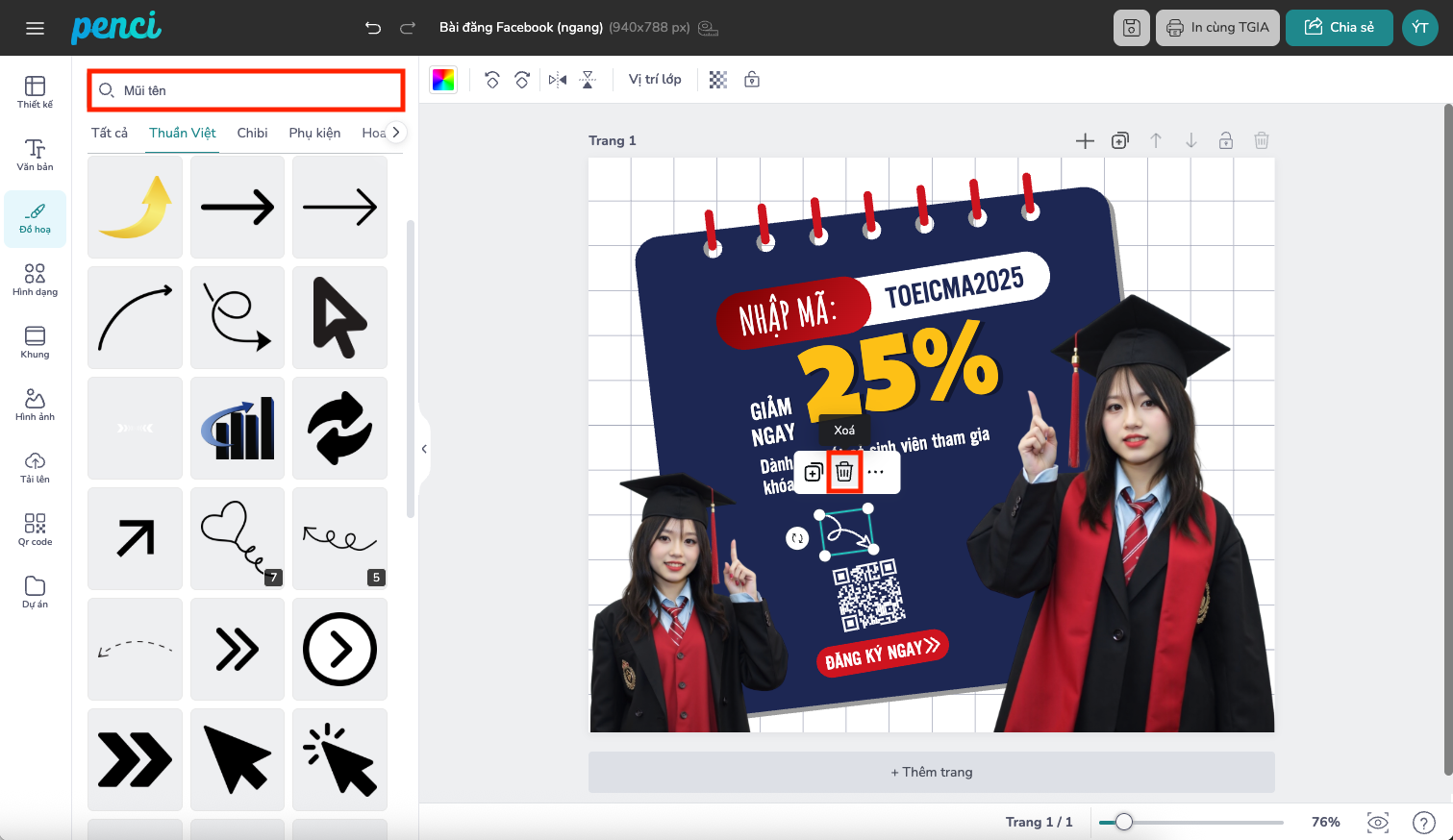
Flexibly change the design template quickly
Adjust the size of the frame, image, border, text
- Choose the mirror you want to change the size, at the corner of the mirror there will be round dots.
- Next, you drag the corner into the round dot area. At this time, there will be a new dot appearing.
- Hold the left corner and drag according to the size you want.
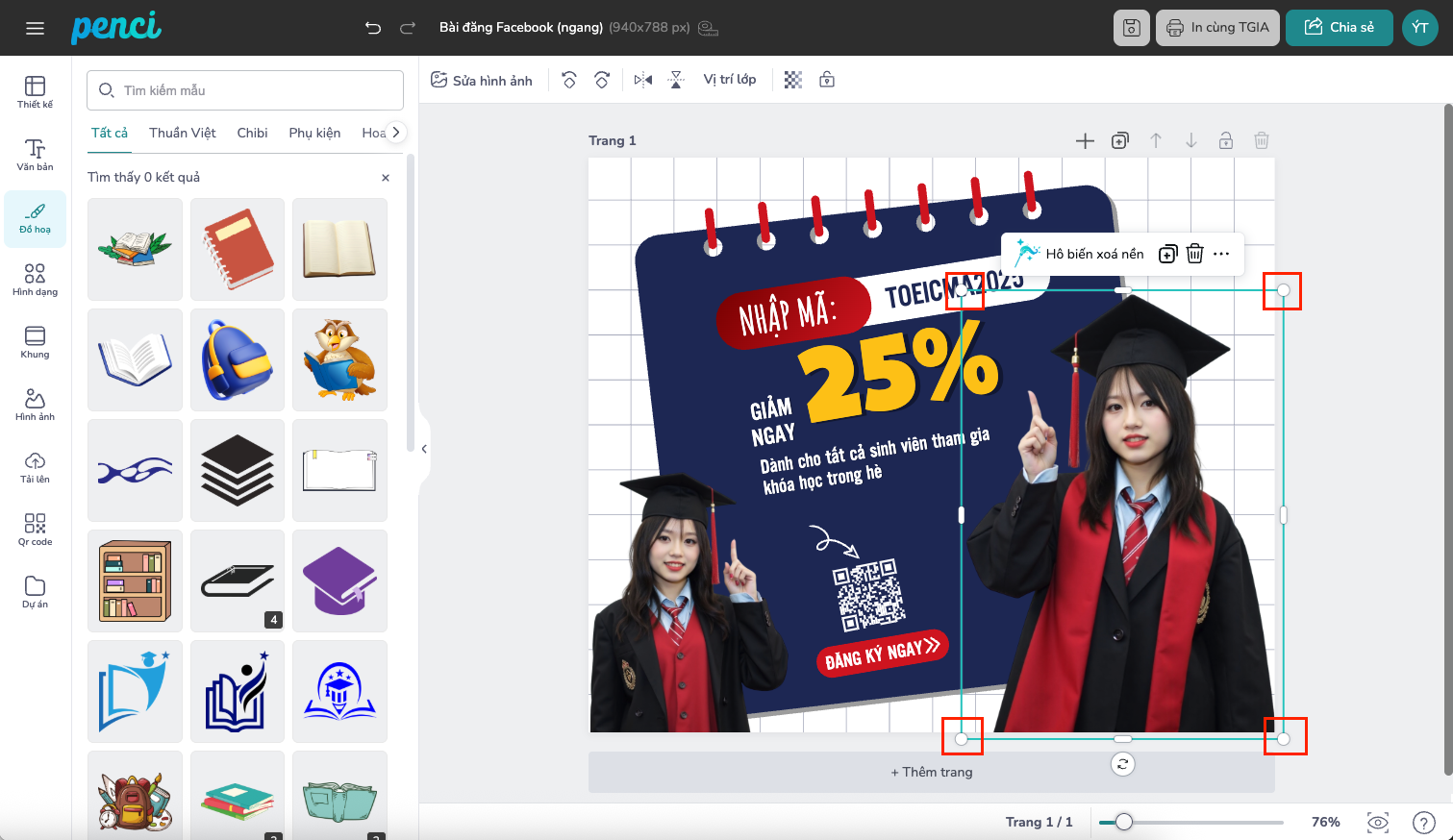
Change the size of the image of your student ID
Insert and adjust various shape blocks
- Go to the "Shape" section → choose from square, circle, star, triangle,...
- Drag, resize and rotate to the position you want
- Adjust the color, thickness of the border or rounded corners, thickness of the shape's edge.
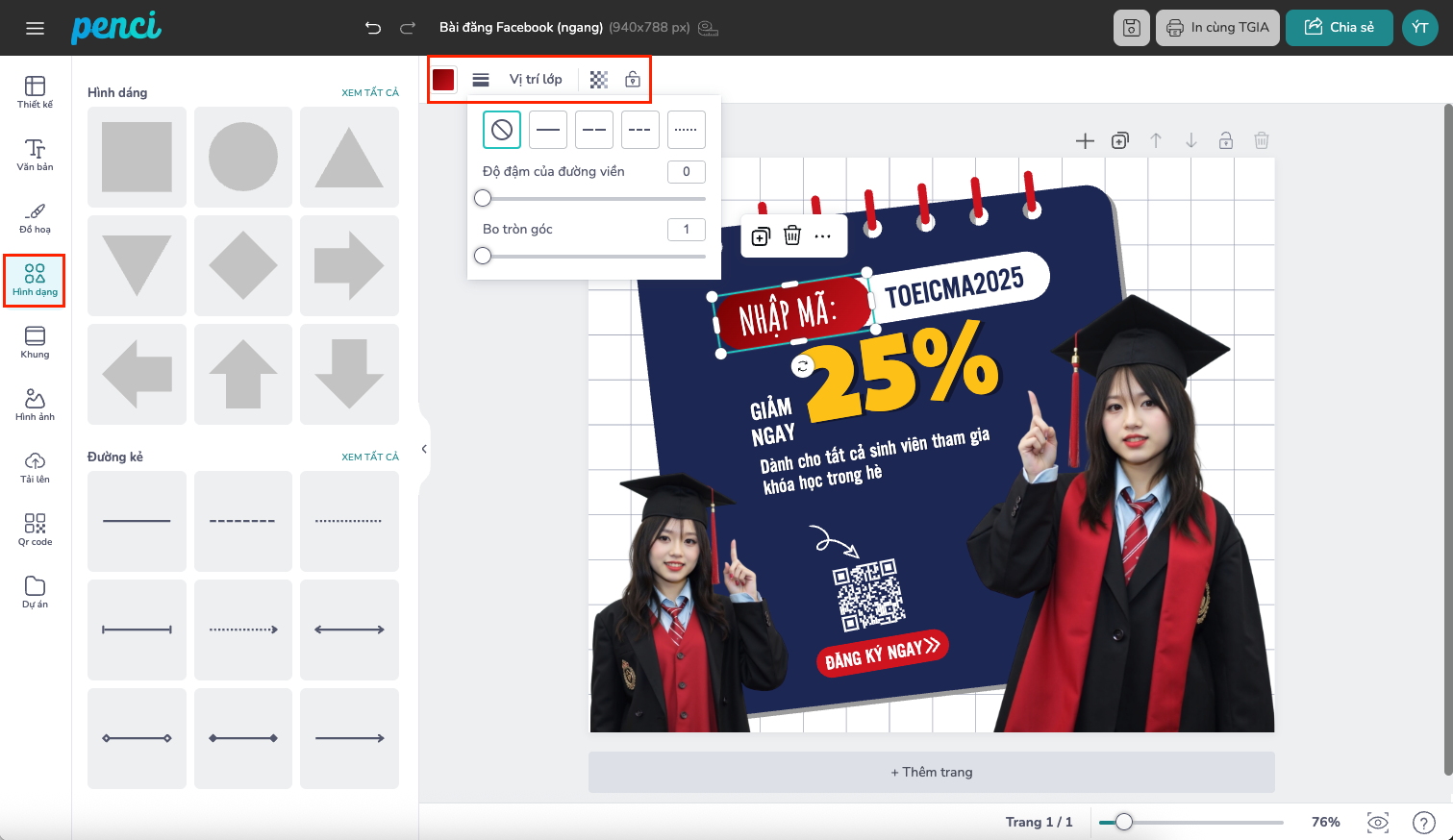
The design template can add a colored shape, rounded inside highlight
Note: You can choose the mirror, then choose the symbol to lock the mirror at the fixed position. Avoid overlapping areas to avoid dragging other areas.
Add a frame to the design
In Penci, the frame function helps your image fit into a defined shape.
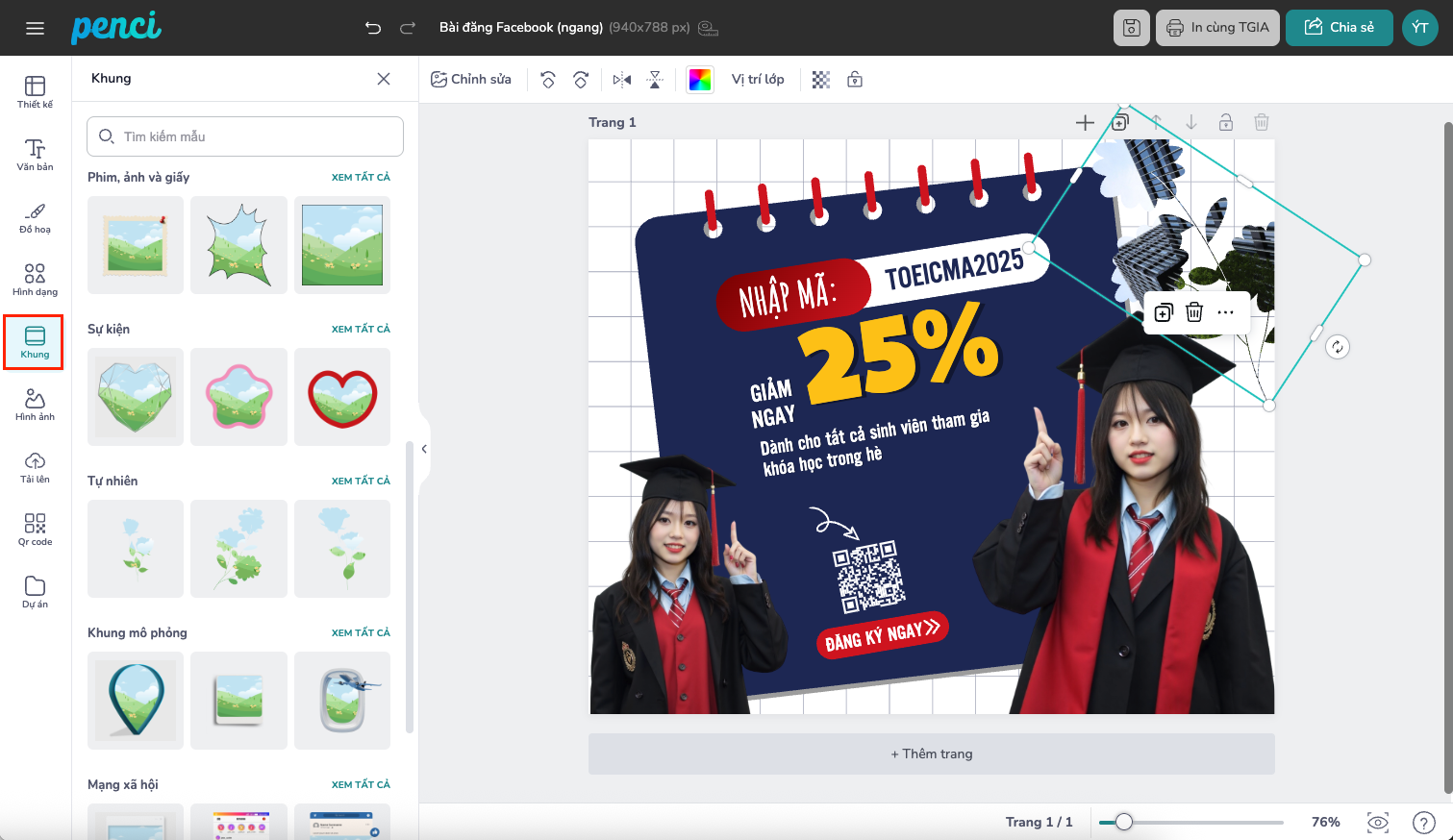
The background image is inserted into the flower frame
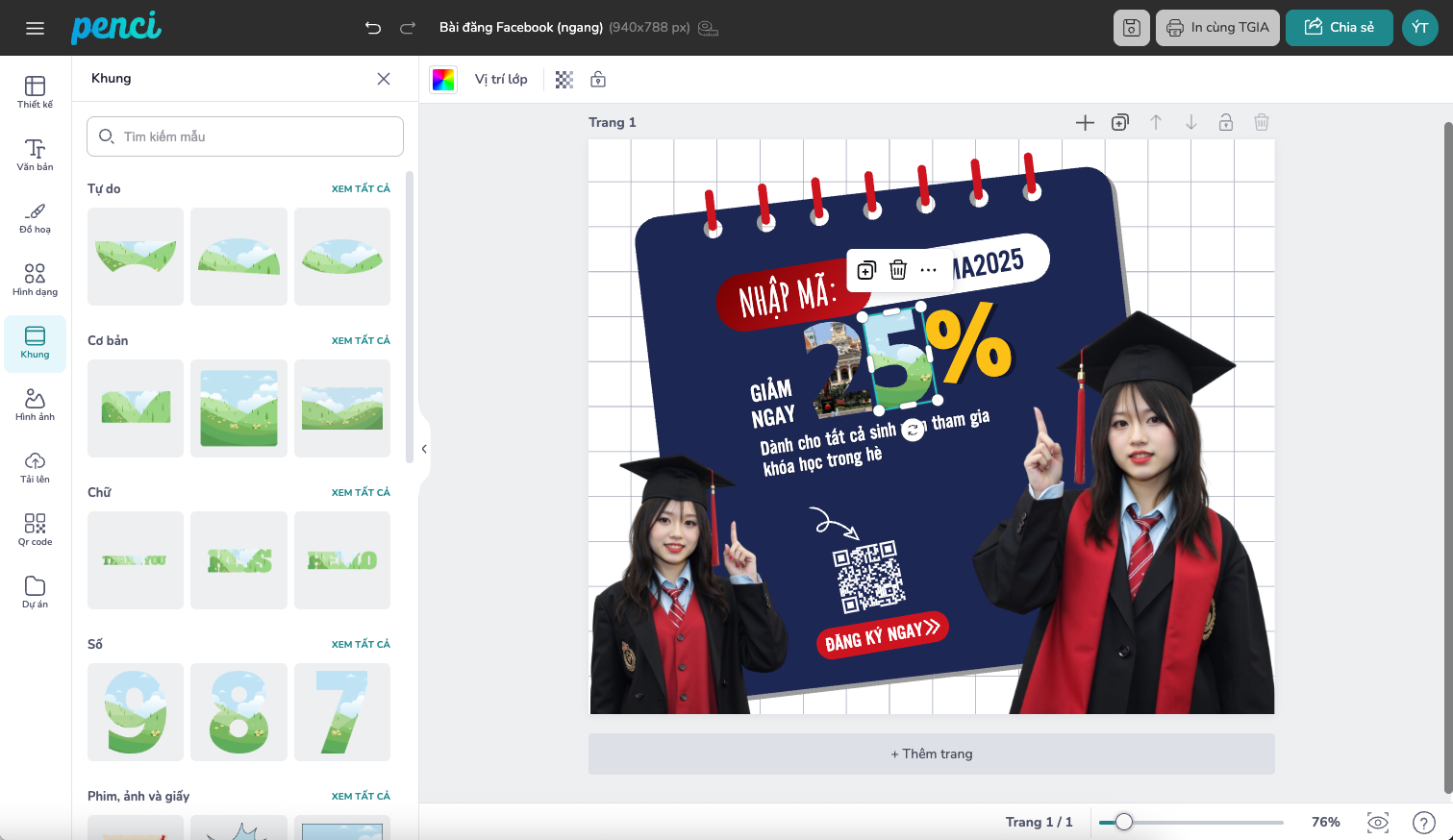
The image is used to create a background for the text
Image storage quality Vietnam
Go to the "Image" section → choose images from Penci's image library with many images of landscapes, culture and Vietnamese people.
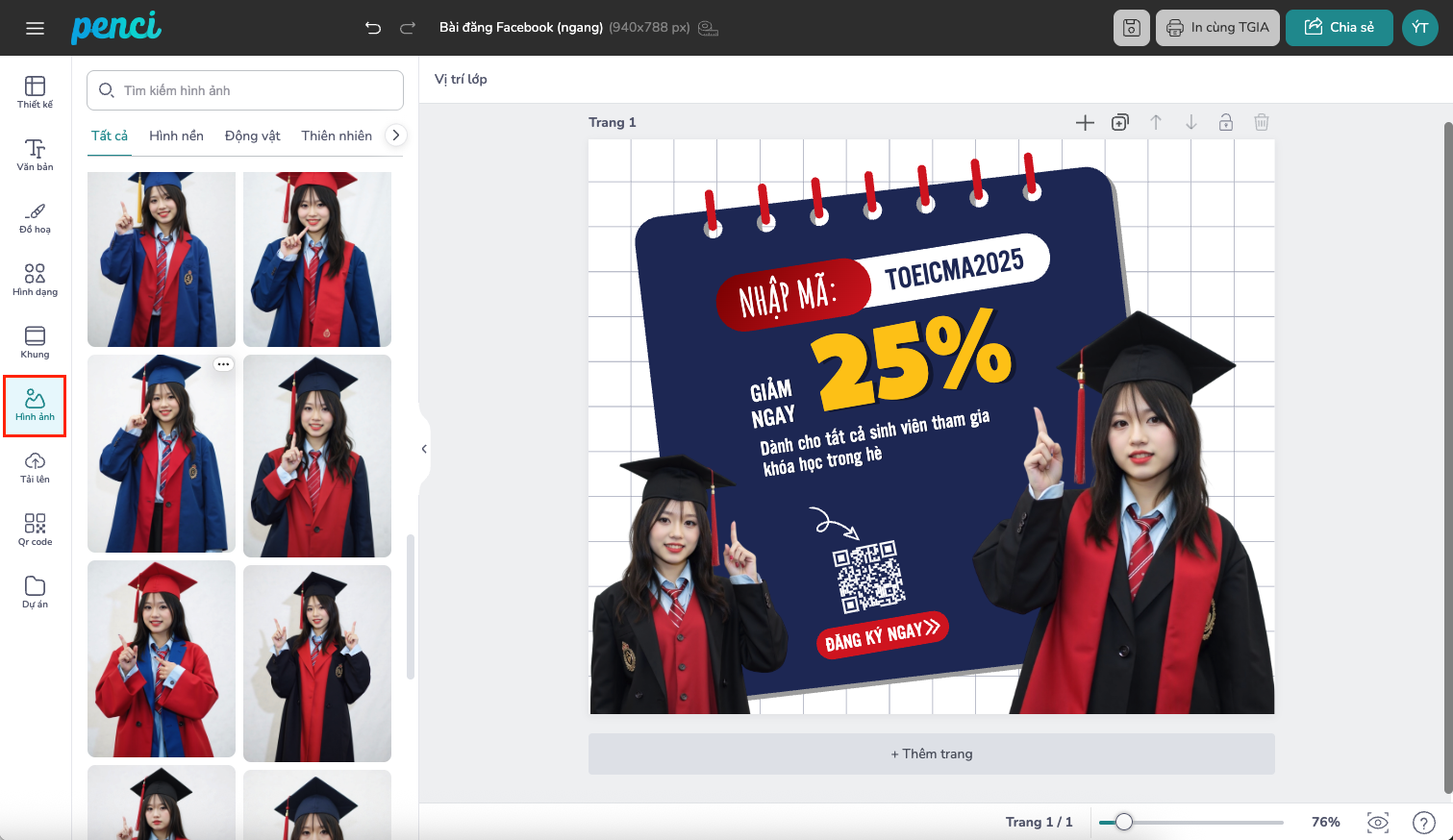
Image storage is suitable for Vietnamese users
Upload and use your own images
- Upload to "Upload" → choose images from your computer or your device.
- After the image is uploaded in the gallery, you choose the image you want to insert into the design, drag it to the position and adjust the size as desired. (You can "Undo" to restore the original mirror in the image)
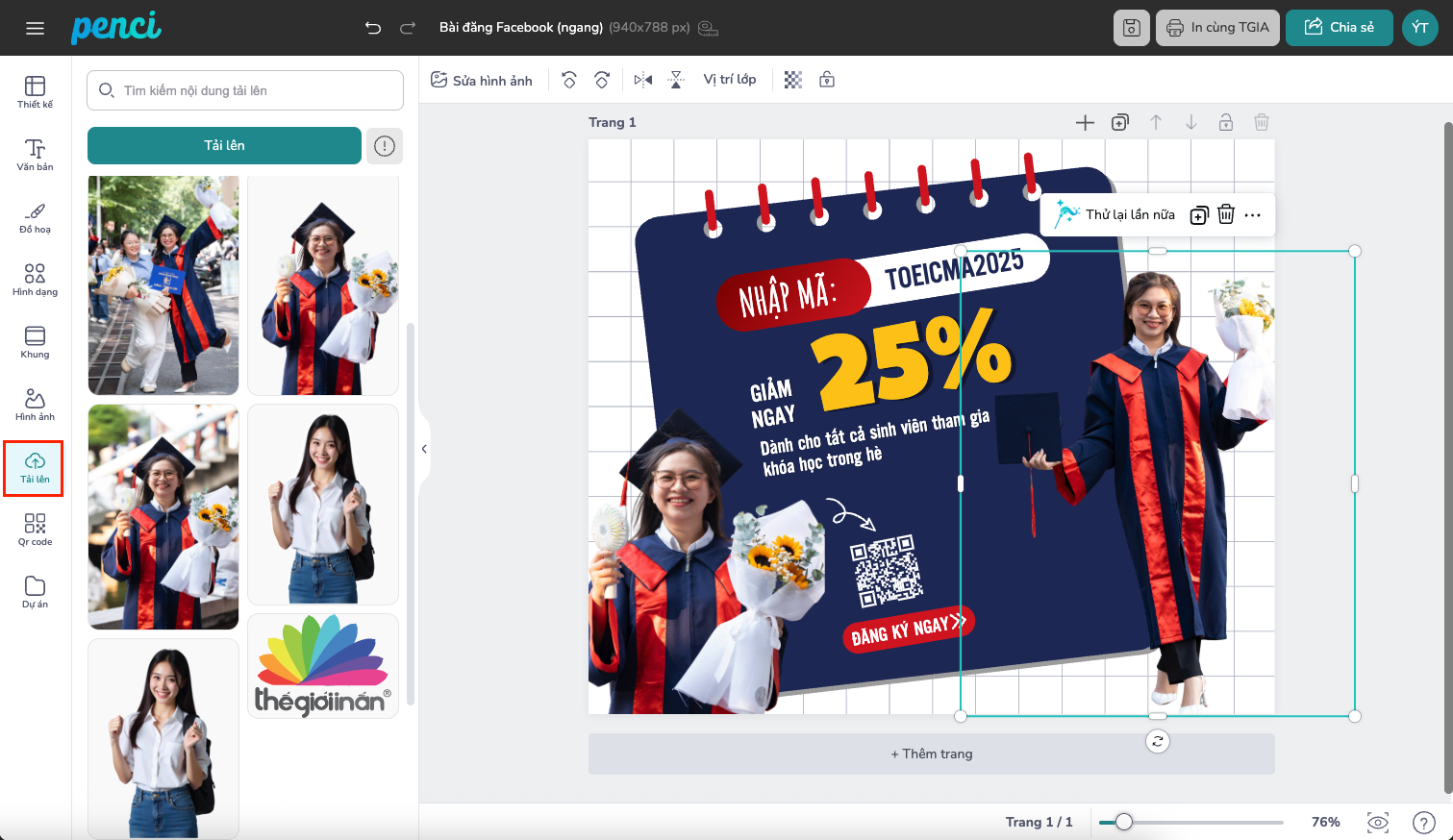
Quickly drag personal images into the design area
Start with the simplest operations: change color, replace image, insert text,... gradually you will see yourself completely capable of creating professional designs that rival real designers. Access the free design tool Penci https://penci.vn/, then log in with Google/Zalo and try your first design!
Source: Penci - Design tool for Vietnamese people, for Vietnamese people
.png)
.png)

.png)










 Login with Zalo